Install AnomalyGuard
Deploy AnomalyGuard from the Azure Marketplace as a managed application on Azure Container Apps. The offer creates a Container Apps environment with a Master app (UI and API) and one or more Worker apps (detection and load jobs). You supply an external PostgreSQL database and a Microsoft Entra ID app registration at install time.
Prerequisites
Before you open the Marketplace wizard, have these ready:
- Azure subscription with permission to create resource groups and deploy managed applications.
- PostgreSQL database that AnomalyGuard can reach (connection string). Plan a backup for this database — it stores anomalies, filters, settings, and related app data.
- Microsoft Entra ID app registration with a client secret. You need the Directory (tenant) ID, Application (client) ID, and the secret value. Follow Setup Service Principal & Users for registration, secret, API permissions, and app roles. You can leave the production redirect URI empty until deployment finishes — you will add it after you have the app URL.
- (Optional) A VNet subnet if you will use VNet Integration instead of public ingress. You need the subnet’s full ARM resource ID.
What the deployment creates
| Resource | Role |
|---|---|
| Container Apps environment + Log Analytics | Shared hosting and logs |
| Master Container App | Web UI and REST API (always 1 replica) |
| Worker Container App | Background jobs (1–10 replicas) |
| Managed application + managed resource group | Publisher-managed packaging of the above |
PostgreSQL and Entra ID are not created by the offer — you connect existing ones.
1. Open AnomalyGuard in Azure Marketplace
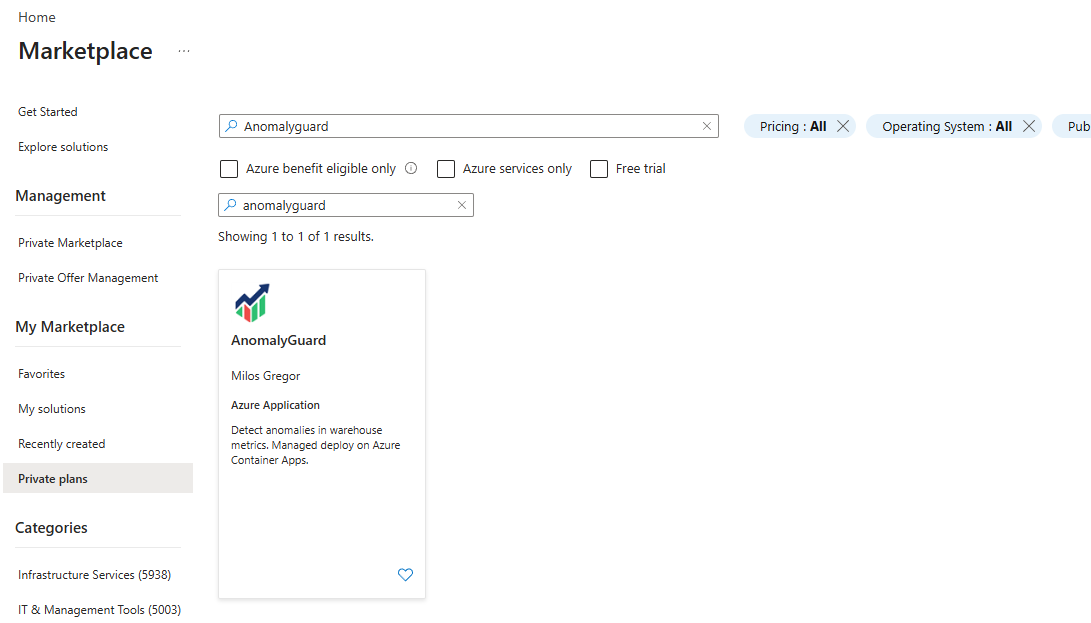
- In the Azure portal, go to Marketplace.
- Search for AnomalyGuard.
- If you were granted a private / preview plan, open My Marketplace → Private plans, then search again.
- Open the AnomalyGuard offer (publisher Milos Gregor).
On the offer page:
- Select your Subscription.
- Select the Plan that matches your license (for example Demo, Start, Small Team).
- Click Create.
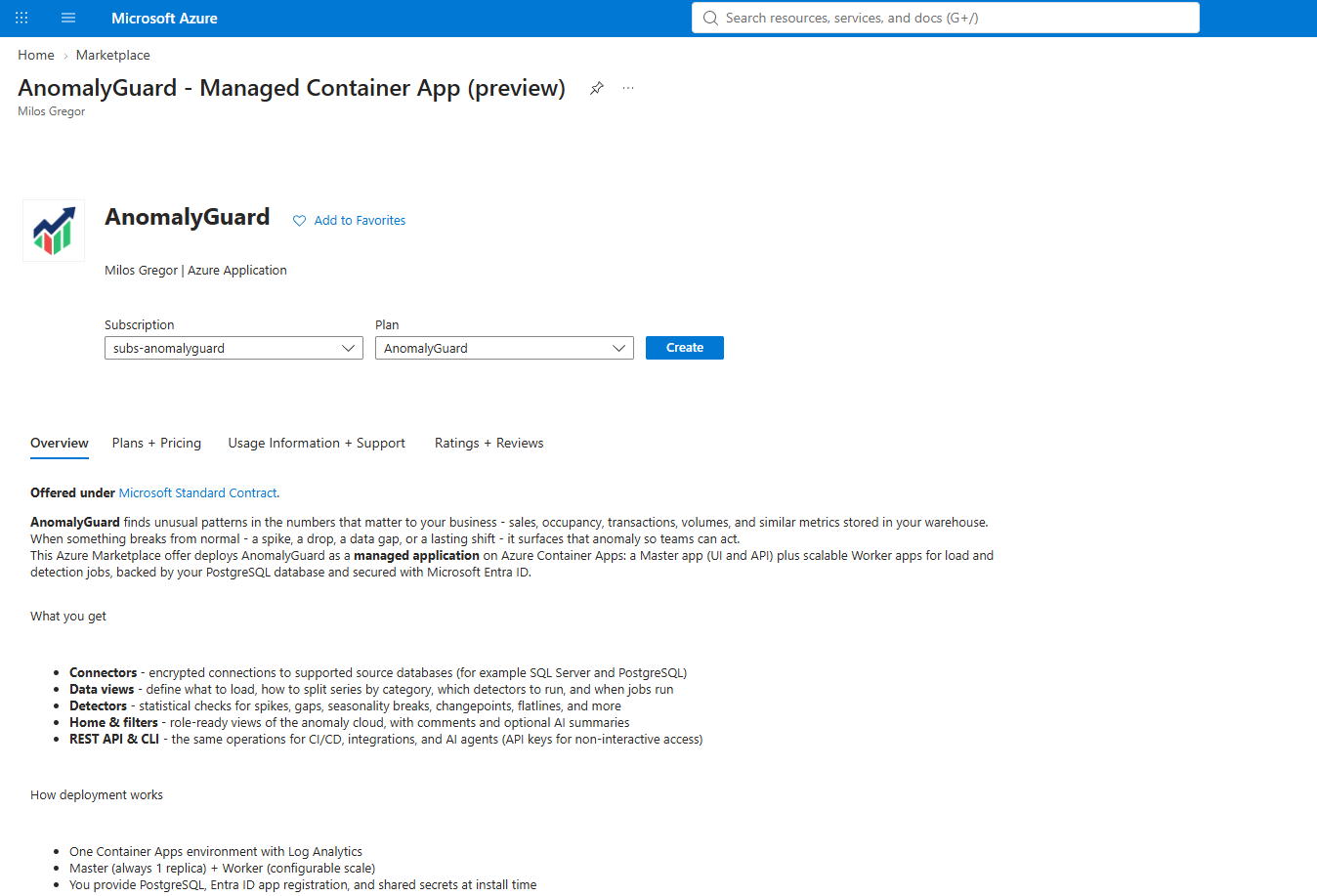
The overview describes the architecture: Master + Workers, external PostgreSQL, and Entra ID. Confirm you already have the database and app registration before continuing.
2. Basics
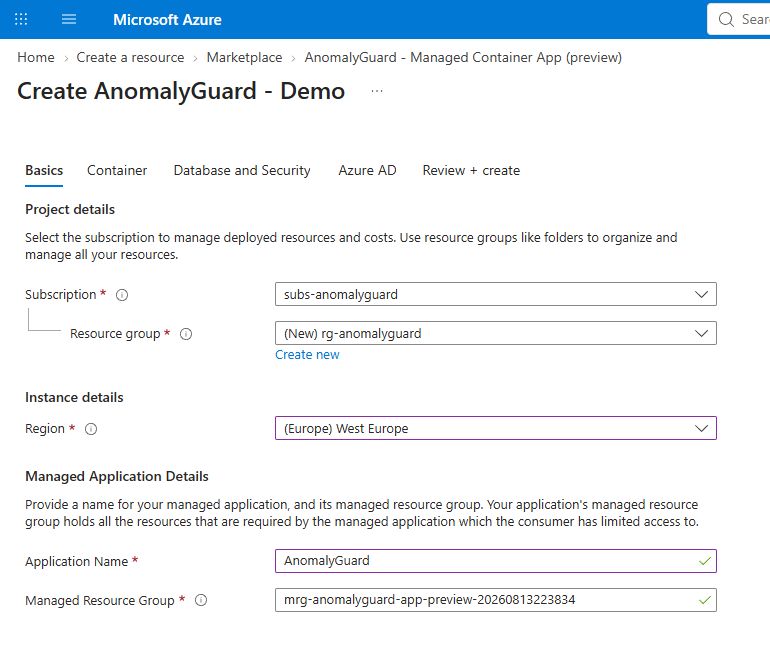
Fill in project and managed-application details:
| Field | Guidance |
|---|---|
| Subscription | Same subscription you selected on the offer page |
| Resource group | New or existing group for the managed application resource (for example rg-anomalyguard) |
| Region | Region for deployed resources (for example West Europe) |
| Application Name | Display name of the managed application (for example AnomalyGuard) |
| Managed Resource Group | Auto-generated name for the group that holds Container Apps and related resources — keep the default unless your naming policy requires otherwise |
Click Next when all required fields are valid.
3. Container
Configure names, networking, and compute.
Resource names
| Field | Purpose |
|---|---|
| Master Container App name | UI/API app (single replica) |
| Worker Container App name | Background workers |
| Container Apps environment name | Shared environment for master and worker |
| Log Analytics workspace name | Logs and diagnostics |
Use unique names within the subscription/region. Demo-style examples: anomalyguard-demo-master, anomalyguard-demo-worker, anomalyguard-demo-env, anomalyguard-demo-logs.
Network access mode
This setting controls how the Master app (UI and API) is exposed on the network. Sign-in still uses Microsoft Entra ID in both cases; the difference is who can reach the endpoint before authentication.
Public Access — Container Apps ingress is reachable from the public internet (HTTPS).
| Advantages | Simple to deploy and operate. Users, admins, and integrations can open the URL without VPN or private DNS. Fits demos, PoCs, and many cloud-first teams. |
| Trade-offs | The HTTPS endpoint is discoverable on the internet. You rely on Entra sign-in, app roles, TLS, and optional API rate limiting — not on network isolation. Larger customers with strict perimeter policies often prefer not to expose internal tools this way. |
VNet Integration — the environment is attached to a subnet in your virtual network. Access is typically limited to your private network (corporate network, peered VNets, ExpressRoute / VPN, private endpoints / private DNS patterns you already use).
| Advantages | Stronger network boundary: the app is not (or not primarily) on the open internet. Aligns with enterprise security baselines — private connectivity to warehouses and PostgreSQL, controlled egress/ingress, and audit of who can reach the URL at the network layer. Preferred for larger customers that must keep BI / ops tooling inside a trusted VNet. |
| Trade-offs | More setup: you need a prepared VNet/subnet (correct size and delegation for Container Apps), routing, and often private DNS or a reverse proxy/custom domain. Users outside the VNet need VPN or another approved path. Misconfigured firewalls or DNS will block the UI and API until networking is fixed. |
For enterprise and regulated environments, VNet Integration is usually the better default when security and compliance require private access to applications and data. Use Public Access when speed of rollout matters more than network isolation, or when users must reach AnomalyGuard from many locations without private connectivity.
If you choose VNet Integration, provide the full Subnet resource ID in ARM format:
/subscriptions/<subscription-id>/resourceGroups/<rg>/providers/Microsoft.Network/virtualNetworks/<vnet>/subnets/<subnet>
Ensure PostgreSQL (and source databases used by connectors) remain reachable from that VNet — private endpoints or firewall rules that allow the Container Apps subnet are common requirements.


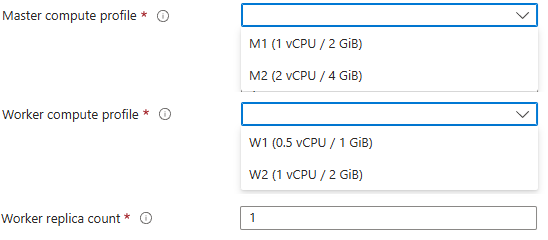
Compute profiles and workers
Available sizes depend on the Marketplace plan. Typical Demo / Start / Small Team options:
| Field | Options (example) |
|---|---|
| Master compute profile | M1 (1 vCPU / 2 GiB) or M2 (2 vCPU / 4 GiB) |
| Worker compute profile | W1 (0.5 vCPU / 1 GiB) or W2 (1 vCPU / 2 GiB) |
| Worker replica count | Integer 1–10 (Master is always one replica) |
Start small (for example M1, W1, 1–2 workers) and scale workers if jobs queue up.
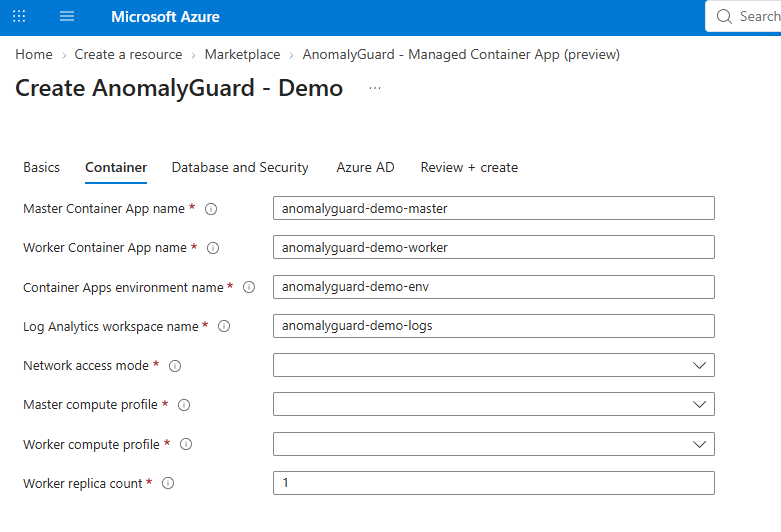
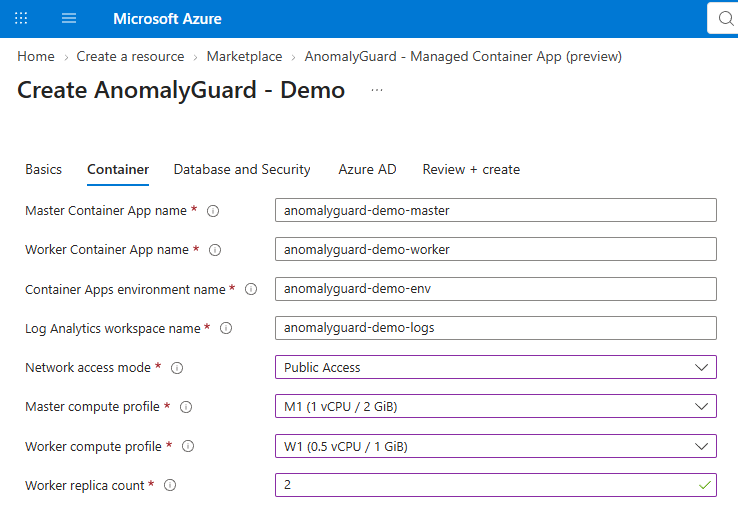
Click Next.
4. Database and Security
Connect AnomalyGuard to PostgreSQL and set shared secrets used by Master and Workers.
| Field | Guidance |
|---|---|
| PostgreSQL connection string | Connection string to your metadata database (reachable from the Container Apps environment) |
| Database schema | Schema for AnomalyGuard tables (for example anomalyguard) |
| Data protection key | Shared secret for ASP.NET data protection — at least 32 characters |
| API keys pepper | Shared secret used when hashing API keys — at least 32 characters |
| Enable API rate limiting | Optional throttle for /api/* on the Master |
Generate strong random values for the data protection key and API keys pepper. Store them in your secret manager; you need the same values if you redeploy or rotate carefully later.
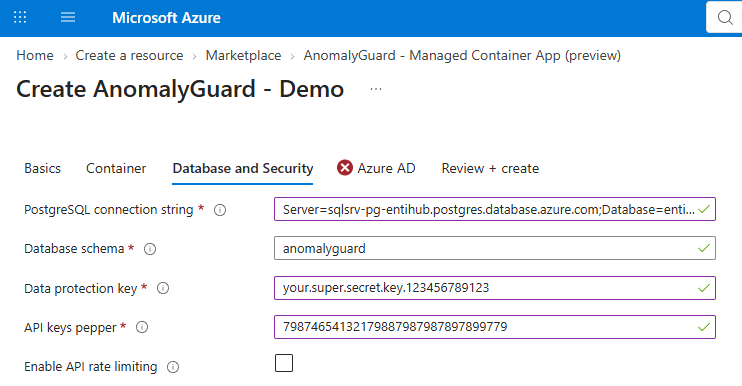
When rate limiting is enabled, set:
| Field | Example |
|---|---|
| API rate limit — max requests per window | 200 (allowed range typically 1–10000) |
| API rate limit — window (seconds) | 60 (allowed range typically 1–3600) |

Click Next.
5. Azure AD
Enter the Entra ID (Azure AD) app registration you prepared earlier:
| Field | Where to find it |
|---|---|
| Azure AD Tenant ID | App registration → Overview → Directory (tenant) ID |
| Azure AD Client ID | App registration → Overview → Application (client) ID |
| Client secret | The secret Value created under Certificates & secrets (shown only once) |
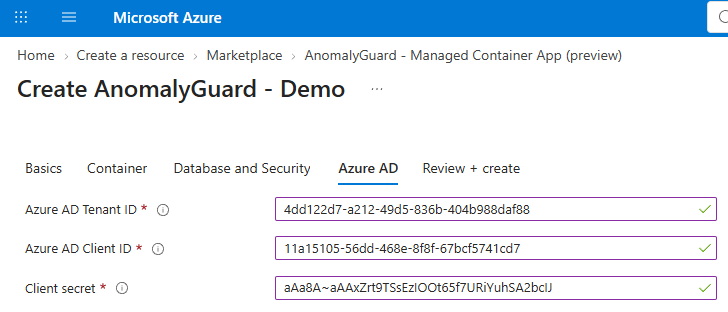
These values enable browser sign-in and API/CLI tokens. App roles (anomalyguard.admin / anomalyguard.user) are configured in Entra — see Setup Service Principal & Users.
Click Next.
6. Review + create
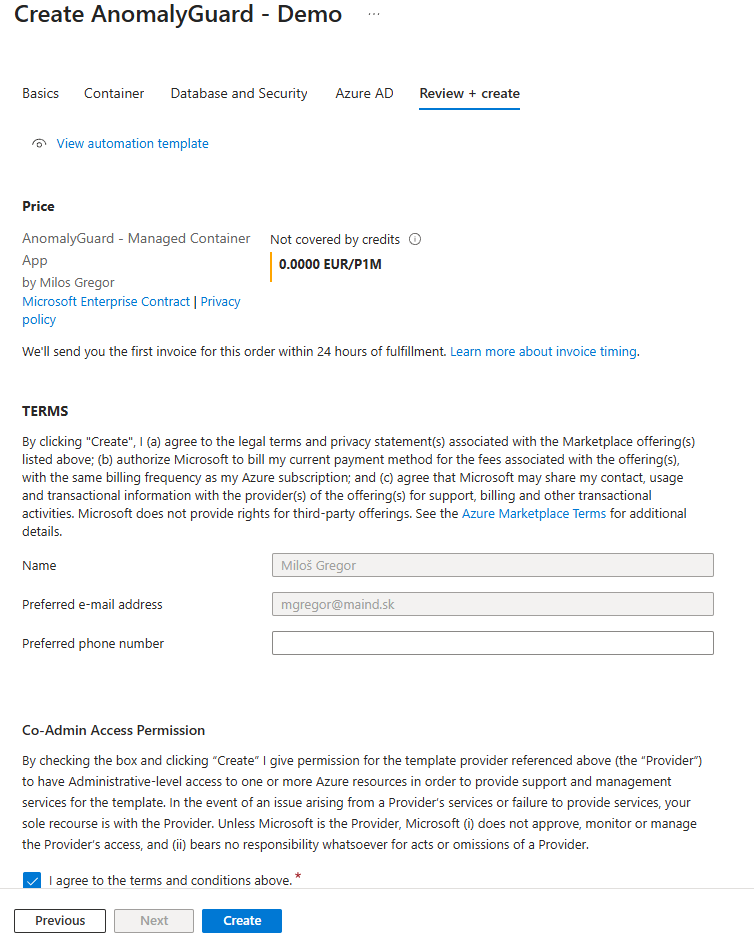
- Review pricing and the summary of parameters.
- Confirm contact details if prompted.
- Read the terms and the Co-Admin Access Permission notice (publisher access to manage the managed application resources).
- Check I agree to the terms and conditions above.
- Click Create.
7. Monitor deployment
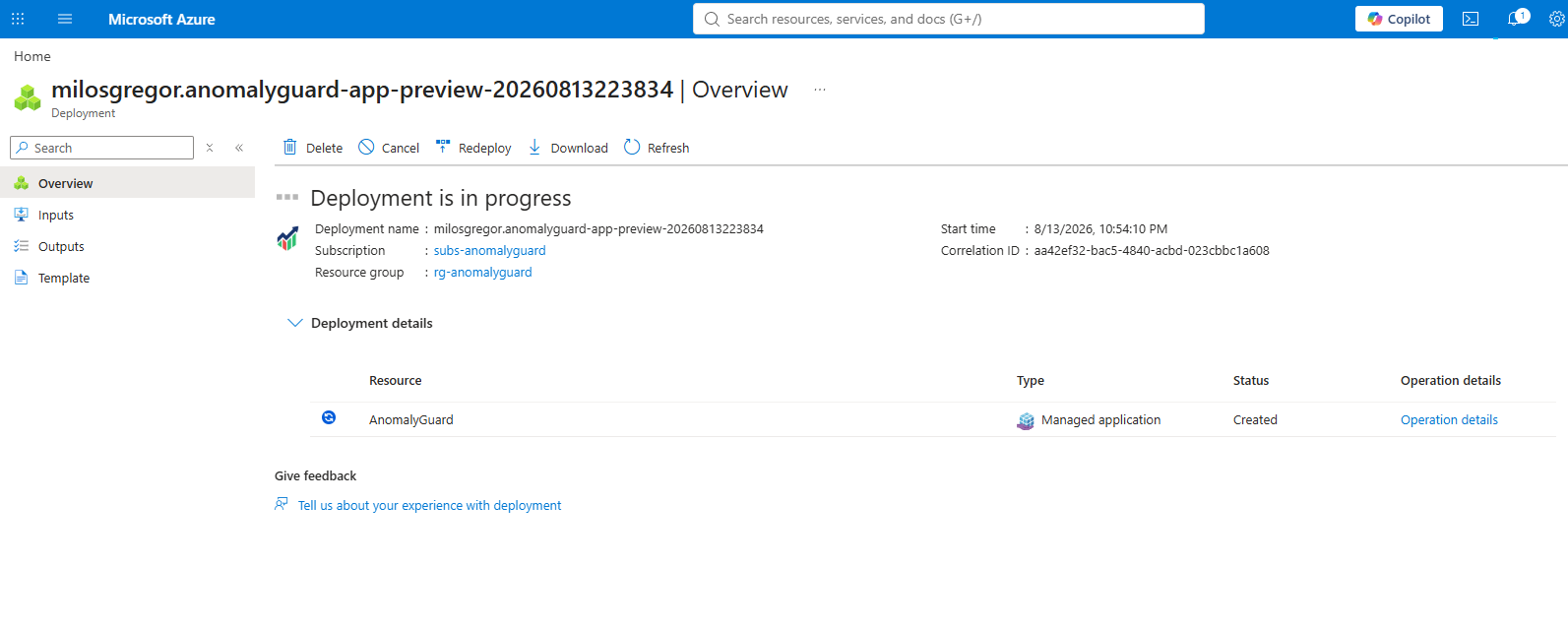
After you click Create, Azure opens the deployment overview. Status shows Deployment is in progress while the managed application and underlying resources are provisioned.
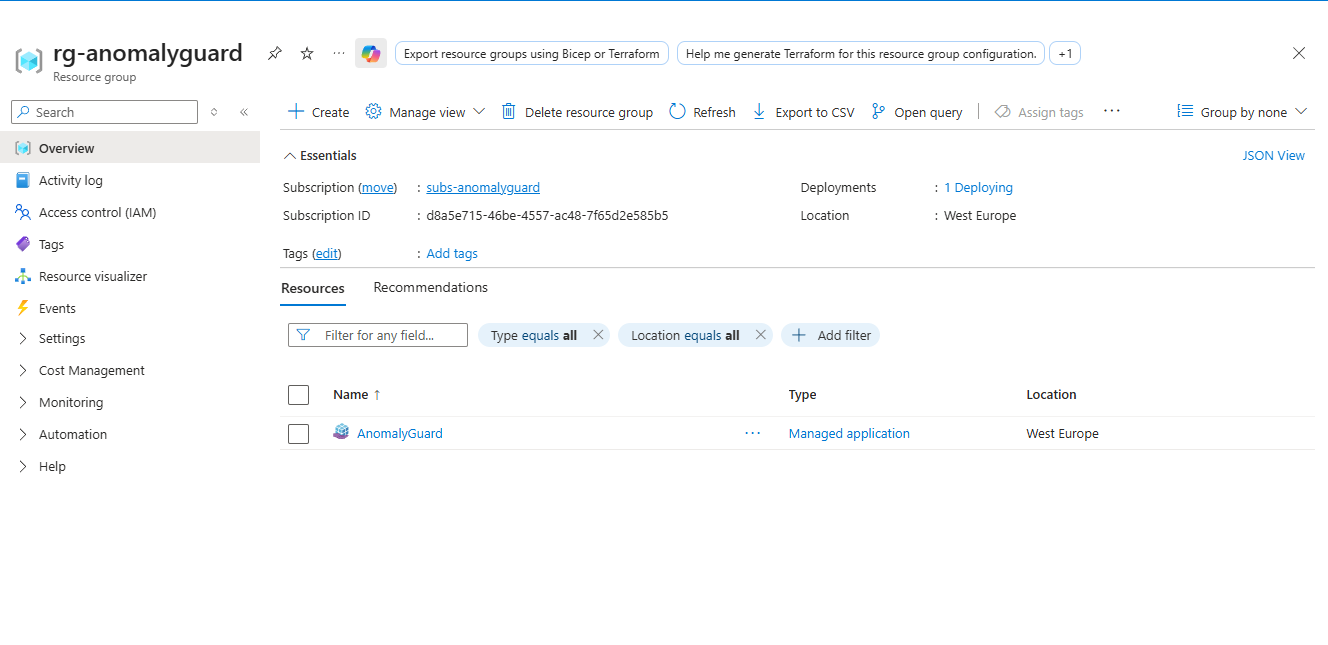
You can also open the target resource group (for example rg-anomalyguard). Essentials may show Deployments: 1 Deploying, and the resources list includes the AnomalyGuard managed application.
Wait until the deployment finishes successfully (refresh the deployment or resource group overview as needed).
8. Open the managed application and find the URL
- In the resource group, open the AnomalyGuard managed application.
- Confirm Essentials (resource group, region, Managed resource group, support contacts).
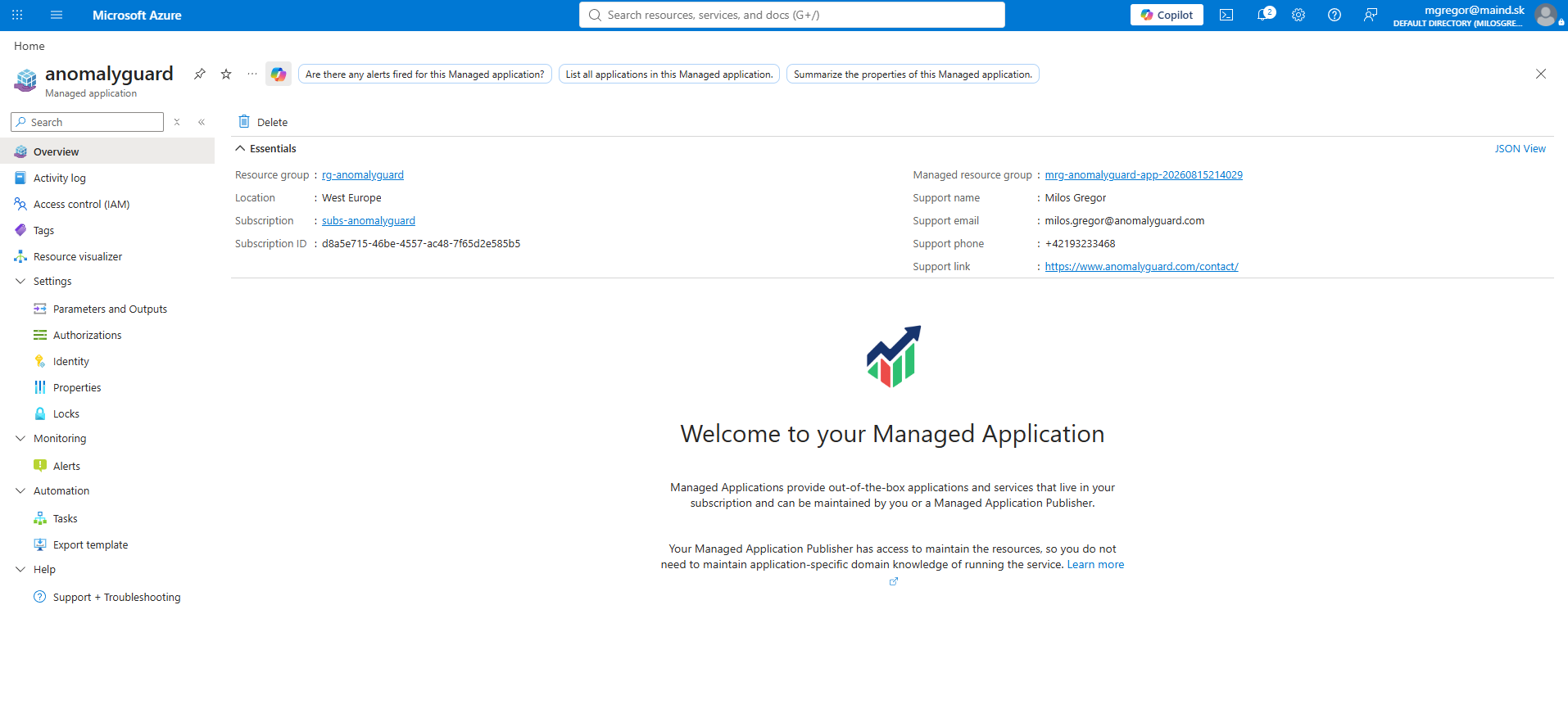
- In the left menu, open Settings → Parameters and Outputs.
- Under Outputs, copy
containerAppUrl— this is the HTTPS base URL of the Master app (UI and API). - Note other outputs as needed:
tier,maxActiveDataViews,workerReplicaCount,managedResourceGroupName.
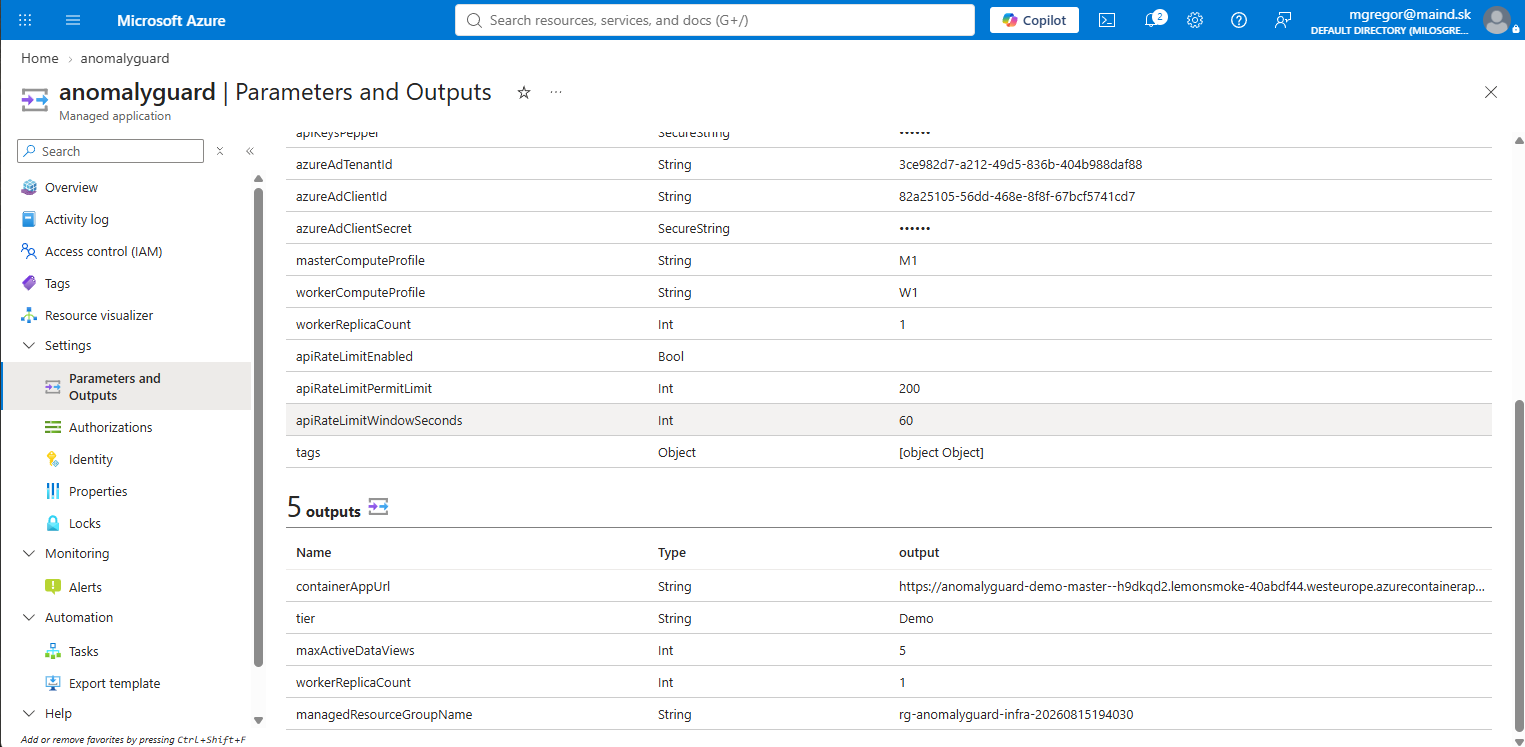
Open containerAppUrl in a browser after you complete the redirect URI step below. Sign-in will fail until Entra knows this callback URL and a user has an app role.
9. Add the redirect URI in Entra ID
Sign-in callbacks must match the URL users open in the browser. You can register either:
- the automatically generated Master URL from
containerAppUrl(Azure Container Apps default host), or - a custom URL under which the application will run (your own domain / custom hostname), once that hostname points at the Master app
In both cases the path is /signin-oidc.
- Open your Entra App registration (for example
AnomalyGuardApp). - Go to Manage → Authentication.
- Under Web, add a redirect URI for the URL you will use:
https://<host>/signin-oidc
Examples:
- Generated Container Apps URL:
https://anomalyguard-demo-master--….westeurope.azurecontainerapps.io/signin-oidc - Custom application URL:
https://anomalyguard.contoso.com/signin-oidc
If users can reach the app on both hosts, add both redirect URIs. The URI must match the address in the browser exactly (scheme, host, and path).
- Save. Keep any local URIs (
http://localhost:5077/signin-oidc, etc.) only if you still use them for development.
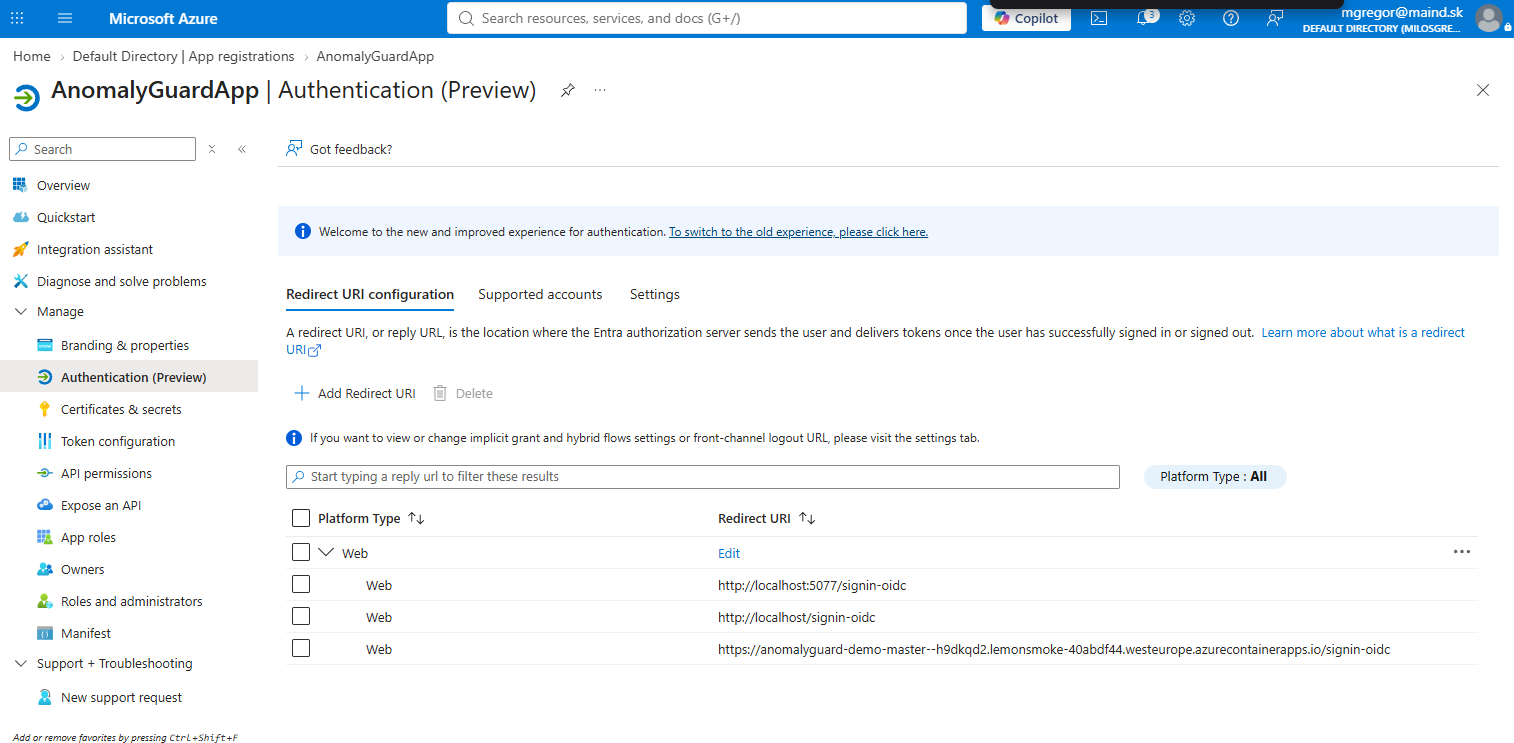
Then assign Admin / User app roles and sign in — details in Setup Service Principal & Users.
Uninstall
To remove the deployment:
- Open the AnomalyGuard managed application.
- On Overview, click Delete.
- Confirm with Yes.
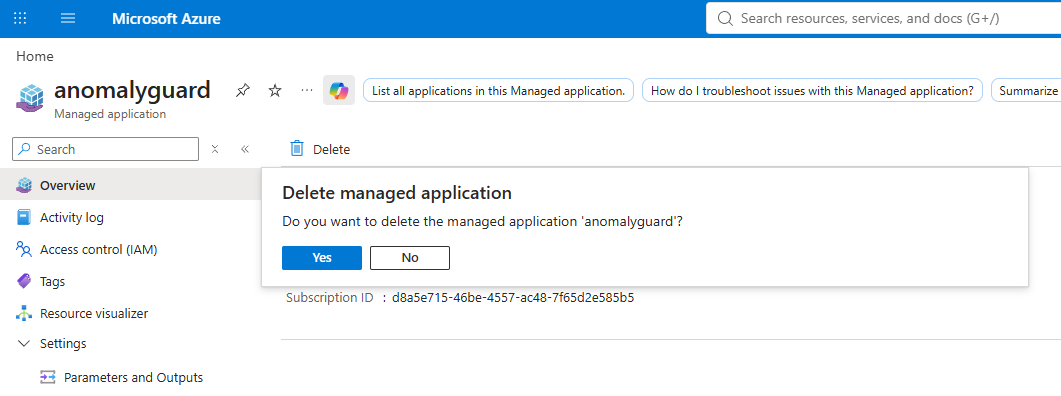
Deleting the managed application removes the managed resources (Container Apps environment, apps, Log Analytics in the managed resource group). It does not delete your external PostgreSQL database or the Entra app registration — remove or retain those separately as needed.
Next steps
- Setup Service Principal & Users — finish roles and first admin sign-in (if not done yet).
- Connectors
- Data Views