Users
Administrators assign which data views each user can see. Licensing does not limit the number of users — see License.
Prerequisites (Microsoft Entra ID)
Before a person can sign in and use AnomalyGuard, assign them an application role in Microsoft Entra ID for the AnomalyGuard app registration (for example User / anomalyguard.user, or Admin / anomalyguard.admin). Role setup is described in Setup Service Principal & Users.
Without an Entra app role, the user cannot authenticate into the application. The Users page in AnomalyGuard then controls which data views that signed-in user may access — it does not replace Entra role assignment.
Web UI
Open Users in the admin navigation. The list shows each user’s email and how many data views are assigned.
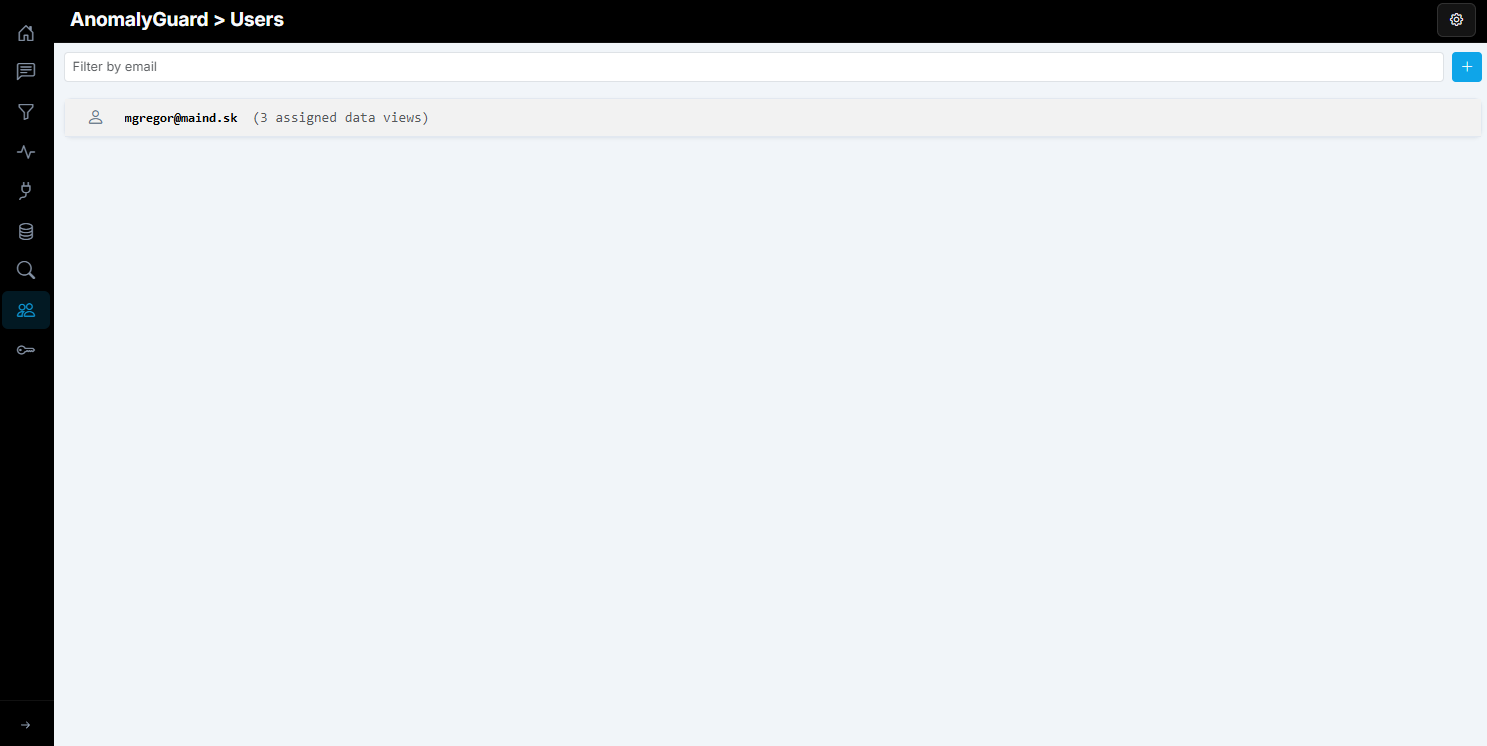
Create or edit a user (email must match their Azure AD address). Under Data views access, select the data views they should see (Home, Filters, Monitoring, and related results are scoped to that set).
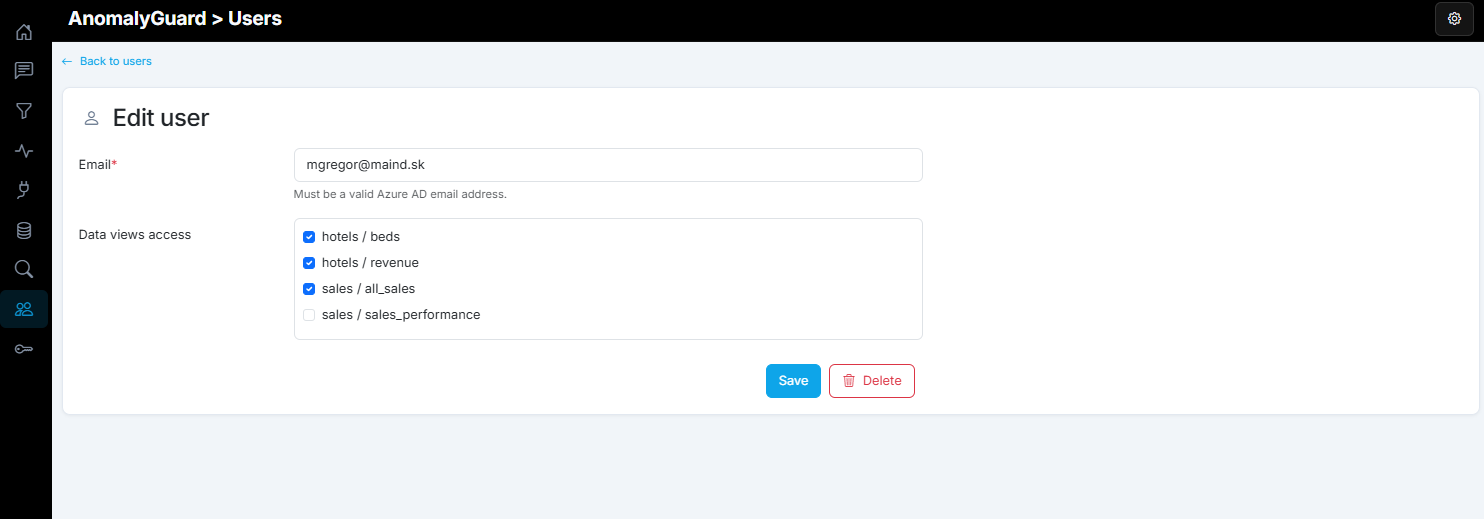
If a user has no data views assigned, they can still sign in (when they have an Entra role), but they see no data and no anomaly detection results anywhere in the app — Home, Filters, Monitoring, and related views stay empty until at least one data view is assigned.
REST API
| Method | Path | Description |
|---|---|---|
| GET | /api/v1/access/users |
List users and their data view IDs |
| PUT | /api/v1/access/users/{userId}/dataviews |
Set data view access (JSON array of IDs) |
| GET | /api/v1/access/me/dataviews |
Data views for the current user |
CLI
anomalyguard access users
anomalyguard access set-user-dataviews 42 --file dataview-ids.json
anomalyguard access whoami --json
Example dataview-ids.json:
[1, 3, 7]